The operator's desk,
mapped.
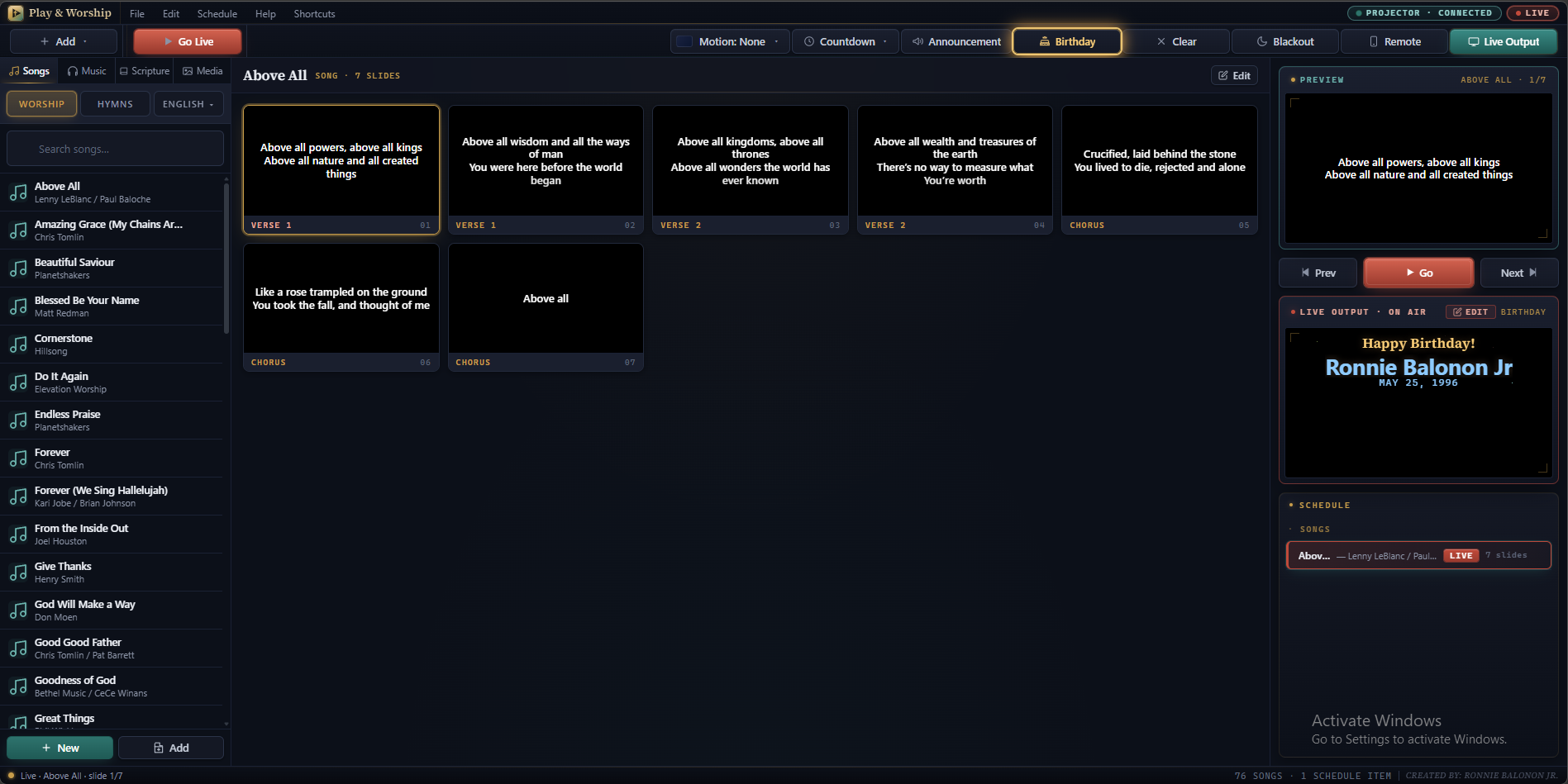
Every region of the Play & Worship operator console explained — what it does, why it's where it is, and how
to use it without thinking once you've run a service or two.
Region 1
Menu bar
A thin always-visible strip at the top of the window with desktop-class menus, plus status pills on the right.
- File — Export / Import service JSON, app info, sign out
- Edit — Undo / Redo on schedule actions
- Schedule — Clear, save as template, load template
- Help — Keyboard reference, about, contact
- Live pill — Glowing red dot when the projector is showing something
- Projector pill — Green when the projector window is connected
Region 2
Toolbar
The most-used actions live here as labeled buttons. No icons-only — operators need to read fast.
- Live Output — Opens the projector window (must be clicked once per session)
- New Song — Opens an empty editor (or press N)
- Import Song — Paste lyrics, parser detects sections (or press I)
- Load PPTX — Pick a .pptx file from disk
- Go Live — Big red button. Promotes preview to live
- Clear / Blackout — Wipe live or fade to black
- Export / Import — Save / load service JSON
Region 3
Library (left panel)
Four tabs — Songs, Hymn, Scripture (Bible), Media. Type to filter, click to select, double-click to add to schedule.
- Search-as-you-type across title, author, CCLI
- S / H / B / M shortcut keys jump between tabs
- Click a row to preview in the workspace
- Double-click to push to the service schedule
- Right-click for edit / duplicate / delete
- Language filter on Songs tab (English / Tagalog)
Region 4
Workspace (center)
The center of the screen. Shows whatever you have selected in the library or schedule — usually a grid of slide thumbnails or a song editor.
- Slide grid — every slide of the current song / deck / passage
- Active slide ringed in gold
- Click a thumb to preview it on the Preview monitor
- Double-click to push directly live
- Editor mode — same area swaps into the song editor when you hit Edit
- Style strip — font size, text color, background buttons (for scripture and songs)
Region 5
Monitors (right panel)
Two stacked monitor previews with the transport between them. Preview is blue (operator-only); Live is red (what the projector shows).
- Preview monitor — what's queued, not yet live
- Transport row — Prev / Go / Next buttons
- Live monitor — mirror of the projector window
- Keyboard reference card below the monitors
- Space = Go · ←/→ = Prev/Next
Region 6
Schedule strip (bottom)
The full service order as a horizontal strip of cards. Drag to reorder, double-click a card to go live, hover for ✕ to remove.
- Card = service item (song, scripture, deck, video)
- Drag a card to reorder; live index follows
- Click = preview in workspace
- Double-click = go live
- Slide count badge shows item length
- Gold border + LIVE pill on the active card
Region 7
Status bar (footer)
A one-line summary of what's happening across the whole app. Watch this when something feels off.
- Ready indicator — green if everything is live-capable
- Live state — current item and slide index
- Library counts — number of songs, hymns, media files
- Projector status — connected / disconnected
- Auto-save indicator — flashes briefly after every change
Region 8
Projector window (separate)
Not part of the operator window. Opens on click, drags to your second screen, runs fullscreen on F.
- Dedicated window at
/app/projector.html
- Dual transport — BroadcastChannel + postMessage, works over
file://
- F / F11 fullscreen, Esc exits
- B blackout (preserved state)
- 18 motion backgrounds — kenburns, drift, bokeh, aurora…
- Multiple slide modes — text, image, video, music disc, countdown, announcement, birthday
- Re-attaches if the projector tab is reloaded
Region 9
Mobile Remote pairing
A QR code panel in the operator window pairs a phone to the console for hand-held control by the worship leader.
- Show QR in the operator — worship leader scans it
- Or share a 6-digit pairing code if there's no camera
- Operator approves each device before it can push anything
- Device label shows the phone make + browser ("iPhone 14 · Safari")
- Approve · Deny · Kick any device any time
- Trystero peer-to-peer — Nostr / MQTT / BitTorrent-tracker fallbacks
- Auto-reconnect when the operator window regains focus
Reference
Every keyboard shortcut.
Print this. Stick it next to the operator's laptop. By week three you won't need it.
Go Live
Promote the preview slide to the projector
Space
Next slide
Move to the next slide inside the current item
→ PgDn
Previous slide
Move back one slide
← PgUp
Next / previous item
Jump between schedule cards
↓ ↑
Clear live
Blank the projector without losing state
Esc
Blackout / restore
Fade projector to black; press again to restore
B
Fullscreen projector
From inside the projector window
F F11
New song
Open a blank song editor
N
Import song
Paste lyrics; the parser slices sections
I
Songs / Hymn / Bible / Media tabs
Switch the library tab without clicking
S H B M
Countdown overlay
Pre-service countdown on the projector
F1
Confirm auto-save
Cosmetic; everything already auto-saves
Ctrl+S